Why it fits
The Waveshare ESP32-P4-Module-DEV-KIT copies the Raspberry Pi's 40-pin header, with power and ground in the same places. It's the first ESP32 laid out like a Pi, so a screen made to sit on a Pi sits on it too.
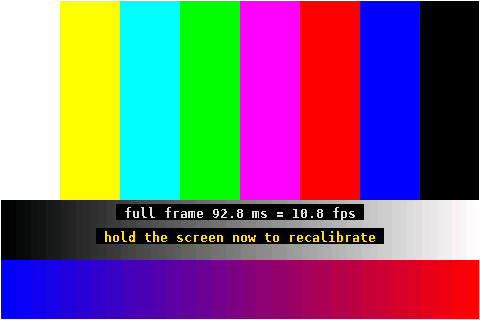
On a Pi, this screen only works through a Linux kernel overlay and the seller's install script. Here a small ESP-IDF driver talks to it directly. It draws its first frame 0.8 seconds after reset and redraws the whole screen about 11 times a second. I couldn't find anything else that makes this screen work on this header.
Want a radio on it? P4 SDR turns the same kit and screen into a spectrum receiver and aircraft tracker.
- Board
- Waveshare ESP32-P4-Module-DEV-KIT
- Screen
- 480×320, ILI9486, XPT2046 touch
- Full redraw
- 92.8 ms (10.8 fps)
- Touch, calibrated
- Within 6.2 px
- Licence
- MIT, free to use and ship
Is this my screen?
Look at the back. It should say 3.5inch RPi Display, 480x320, with an XPT2046 touch controller and a row of four small logic chips. Those chips are the 16-bit interface the driver speaks. lcdwiki calls it the MPI3501, and it's often sold as "3.5 inch Raspberry Pi LCD (A)", "Waveshare-style 3.5 inch RPi LCD" or "goodtft LCD35".
3.5" Pi screens without those chips, such as plain-SPI ST7796 or ILI9488 boards, speak a different protocol and won't run with this driver as it is.
What you need
- The Waveshare ESP32-P4-Module-DEV-KIT.
- The 3.5inch RPi Display (MPI3501). It comes with a stylus, the best way to tap.
- A USB-C data cable. Some cables only charge.
- Chrome or Edge on a computer. The Flash page uses Web Serial, which Safari, Firefox and phones don't have.
Flash it from your browser
- Plug the screen onto the kit's 40-pin header, pin 1 to pin 1 (the square pad at the 3V3 end).
- Connect the kit's USB TO UART Type-C port to your computer.
- Click Flash the tester, then Connect ESP32. The Flash page reads your chip's revision and picks the matching image:
-rev1for v1.x (early kits),-rev3for v3.1 or later. It checks the image's SHA-256 before writing it.
Flashing clears the touch calibration saved on the board, and the screen asks for it again. If flashing fails with the screen fitted, unplug the screen to flash (GPIO36 is a strapping pin) or use the kit's USB-Serial-JTAG port.
Rather use a terminal? The README has the esptool.py commands.
What the tester does
- Speed test. It fills the screen red, green and blue and times each fill.
- Colour bars, with the measured frame rate. Hold the screen now to force a new calibration.
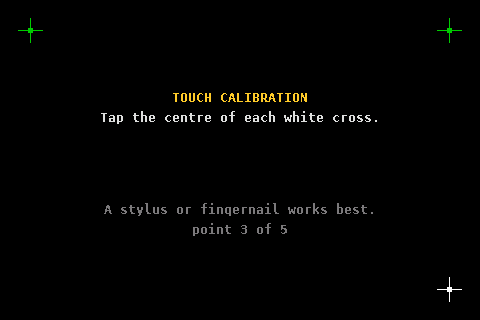
- Touch calibration on first boot: tap the centre of five crosses, the four corners and then the middle. The result is saved, and printed on the serial console at 115200 baud as a line you can paste into your own code.
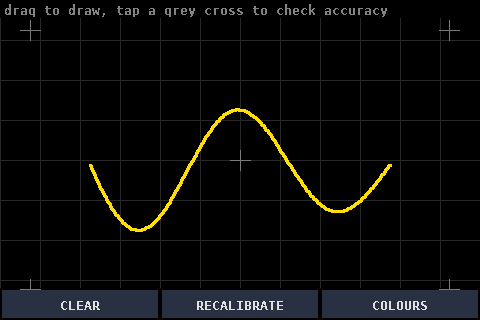
- Touch tester. Drag to draw, see where each touch lands, and check accuracy on five targets. CLEAR, RECALIBRATE and COLOURS are along the bottom.
Try the tester
This is the tester's screen, drawn in your browser by a copy of its firmware: the same three screens in the same order, the same font and colours, and the same five-point fit. The touch panel is pretend. Your clicks become the raw readings a real panel gives (with a little noise), so the calibration and the accuracy check do the same sums the board does. The frame time on the colour bars is the one the real panel measured.
Calibrate with five taps on the white crosses, as you would with the stylus. Then drag to draw, and tap a grey cross to see how far off you land: green is within 4 px, orange 8, red further. Hold the screen during the colour bars to calibrate again. On a keyboard: click the screen, then Enter taps the next cross, and C, R and B press the buttons along the bottom. The calibration is kept until you reload.
Serial console (115200 baud)
Pins
Straight onto the kit's header. Every GPIO can be changed in idf.py menuconfig.
| Screen pin | Signal | P4 GPIO |
|---|---|---|
| 11 | touch IRQ | 21 |
| 18 | LCD D/C (RS) | 4 |
| 19 | MOSI (LCD + touch) | 3 |
| 21 | touch MISO | 2 |
| 22 | LCD reset | 1 |
| 23 | SCK | 0 |
| 24 | LCD CS | 36 |
| 26 | touch CS | 32 |
The backlight runs from the header's 5 V.
Use it in your own project
Copy components/rpi_display into your ESP-IDF 5.5 project's components/ folder:
rpi_lcd_init();
xpt2046_init();
touch_cal_t cal;
if (touch_cal_load(&cal, NULL) != ESP_OK) touch_cal_run(&cal, NULL);
rpi_lcd_text(10, 10, "hello", RGB565(255, 255, 0), RGB565(0, 0, 0), 2);
The README covers the whole API, troubleshooting and building from source. PORTING.md explains how the port works: the pin translation, the 16-bit bus quirk and the init sequence.
Status
The rev1 image is tested on a v1.0 kit. The rev3 image is built from the same source but not yet tested on a v3 chip. If you have one, reports are welcome in issue #3.
Credits
Driver and tester by John O'Dell, John-ODell/esp32-p4-3.5-inch-rpi-display, MIT licence. The font and the origin of the init values are listed in its THIRD_PARTY.md. The screenshots are of the tester itself. Try the tester draws its text with the tester's own 8x16 raster of DejaVu Sans Mono, from ValentinStars/esp32p4-linux (MIT); DejaVu fonts are under the Bitstream Vera licence.