Workbench

Set up the desk pet

Install the desk pet on the Waveshare ESP32-P4 4-inch touch box, straight from the browser. You only need this once: after that the box updates itself over Wi-Fi. Come back here to reinstall it or to recover a box that won't start.

Meet Ember

A desk pet on the box's 720×720 touch screen. It grows with your GitHub activity, and it pings you when a Claude Code or Codex session needs you. You can also pet it, feed it, and play Pet Says and 20 Questions on it. Source: John-ODell/ESP-P4_Box.

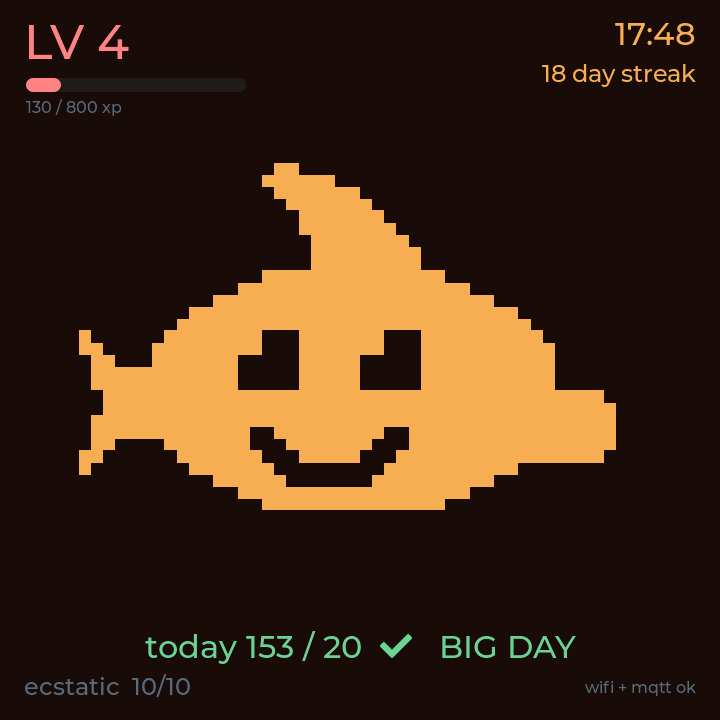
Ember the desk pet on its home screen, level 4, 18-day streak
Its home screen: level, streak, today's GitHub contributions and mood.
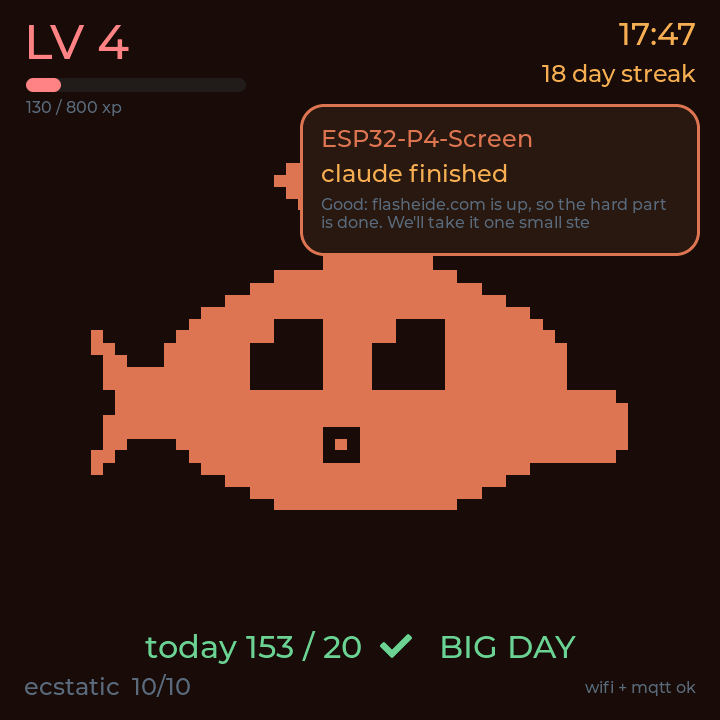
Ember with a 'claude finished' notification bubble
When a coding session finishes, it changes colour and says which one.
  1. 1Connect
  2. 2Install
  3. 3Set up
1

What you need

Three things, and a few minutes.

  • The box (Waveshare ESP32-P4 4-inch touch box) and a USB-C data cable. Some cables only charge; if the box never shows up, try another.
  • Chrome or Edge on a computer (Mac, Windows, Linux or a Chromebook). The browser talks to the box over USB with Web Serial, which Safari, Firefox and phones don't have.
  • A Mac running the bridge. It turns your GitHub activity into the pet and sends it to the box over your home Wi-Fi. Set it up once from the ESP-P4_Box repo with python3 bridge/setup.py; the bridge README has the rest. You can install the firmware first and set up the bridge before you connect the box to it.
2

Plug into the right port

The box has two USB-C ports. Only one of them can install the firmware.

The box from the front, turned a little to show its right-hand side. Under the two buttons on that side are two USB-C ports. The lower one, nearer the bottom of the box, is the USB-serial port to use. Not this one ESP32-P4's own USB This one USB-serial (CH343)
Screen towards you: the two USB-C ports are on the right-hand side, under the buttons. Use the lower one.
  • Use the lower port, the one with the USB-serial chip (a WCH CH343). In Chrome's port list it's called USB Single Serial; on a Mac its name starts with cu.usbmodem or cu.wchusbserial.
  • The other port is the ESP32-P4's own USB. It shows up as USB JTAG/serial debug unit (Espressif), and installing through it isn't supported. If you pick it, this page will say so.
  • Not sure which is which? Plug into either one and click Connect the box: the list shows what's on the other end.
3

Connect and check the chip

The page reads the chip's name and revision before anything is written.

Looking up the latest desk pet release…

4

Install the firmware

Keep the box plugged in until this finishes. It takes a minute or two.

Right for a first install or a recovery. Erasing also wipes the box's saved settings (Wi-Fi and bridge), so for a reinstall that keeps them, untick it.

Install log

        
5

Put it on your Wi-Fi and connect the bridge

Sent to the box over the same USB cable, once it has started the desk pet.

Private by design: nothing you type here goes to this website's server, its storage or any analytics. It goes only over USB to the box, which keeps it.

6

Watch it connect

The box reports each step as it goes.

  • Wi-Fi Waiting for settings
  • Bridge Waiting for Wi-Fi
7

Next

The box is set up. From here on it looks after itself.

  • Hook up your AI tools. Claude Code, Codex, Goose and Aider can send "done" and "needs you" bubbles to the pet. Run connect.py from the repo on the Mac; the bridge README has the details.
  • Updates arrive over Wi-Fi. The box installs new desk pet releases by itself, so you don't need this page again unless you want to reinstall it, change its Wi-Fi or bridge, or recover a box that won't start.

Flashing by esptool-js 0.7.0 © Espressif Systems, Apache 2.0. Firmware from John-ODell/ESP-P4_Box. All credits